
Customizing the Powershell terminal with oh-my-posh
Instructions on customizing the terminal in powershell with oh-my-posh and winget
Motivation
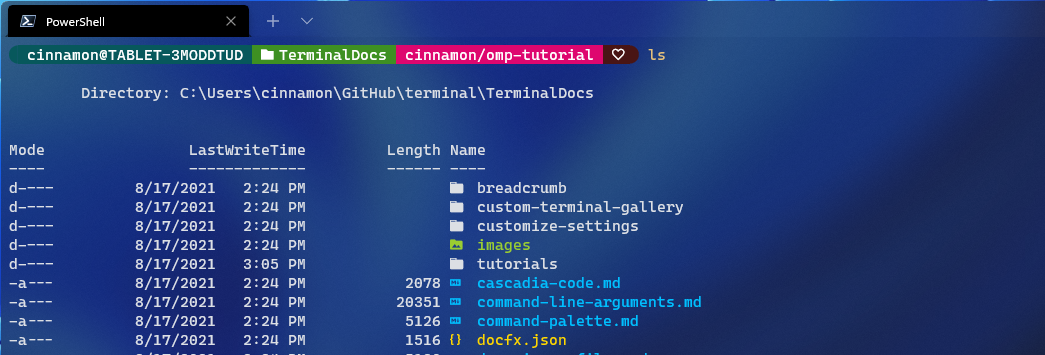
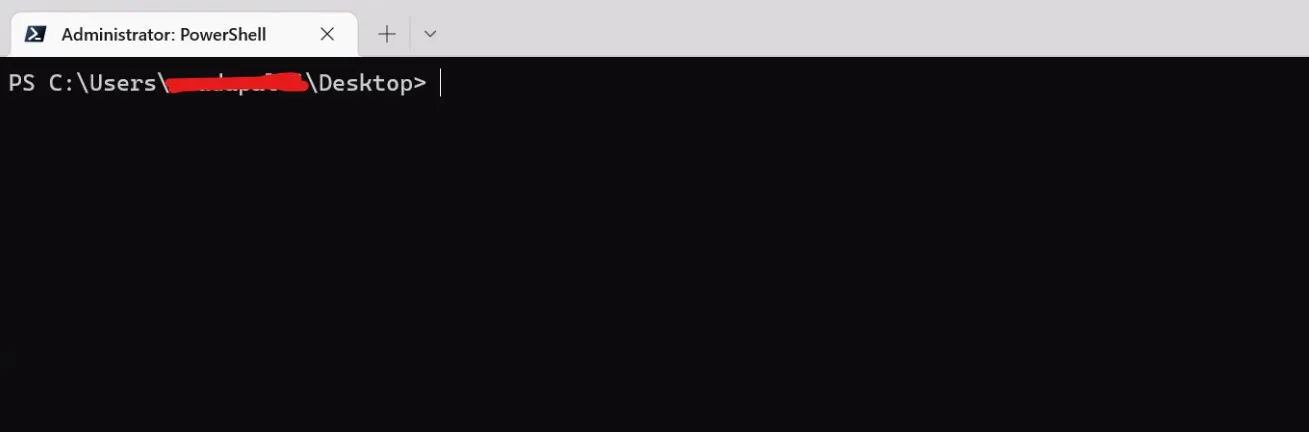
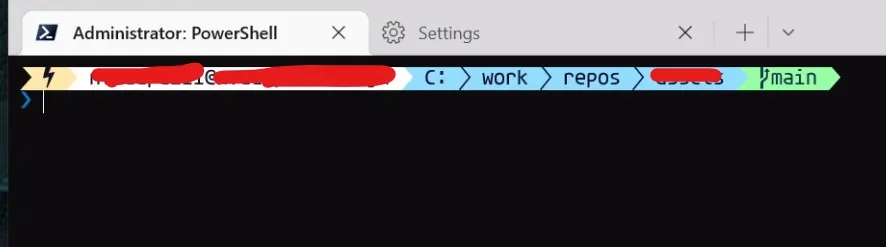
Default terminal in a powershell looks like the following and this blog helps in making the terminal look fancy with features
Before
After
Nice to have
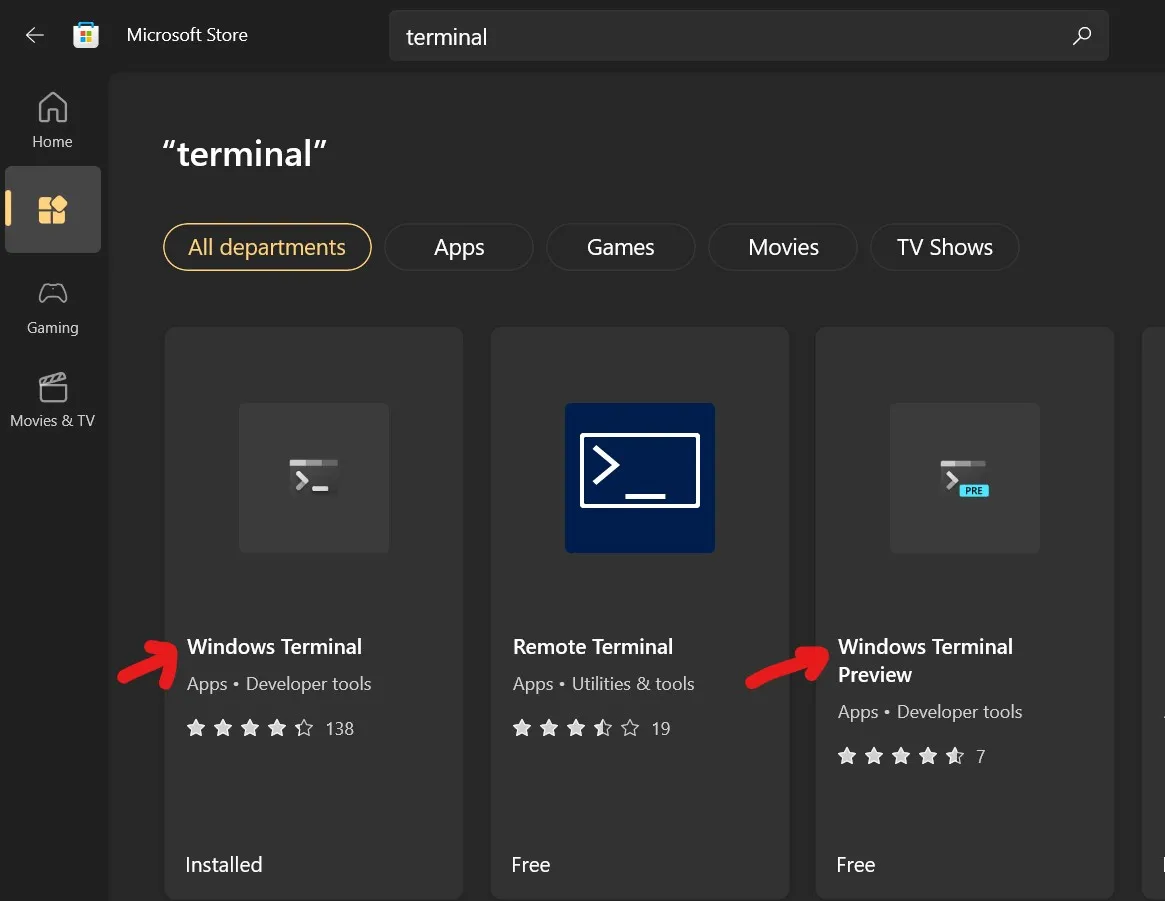
Good to have the Windows Terminal (or Preview) app installed from Windows app store for customizing the font
Steps
Install Nerdfonts
Fonts can be previewed using https://www.programmingfonts.org/#agave
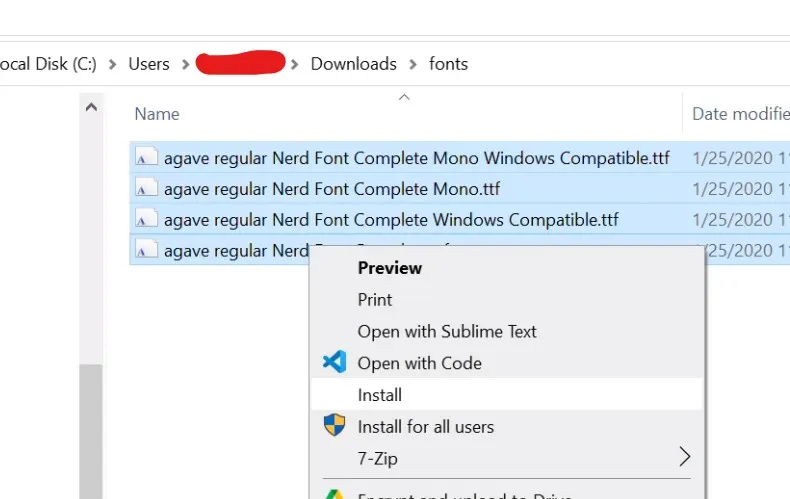
- Pick any font available here and install it on the Windows machine by downloading it
- Download the zip file and extract the ttf files
- Right click and hit
installas shown below
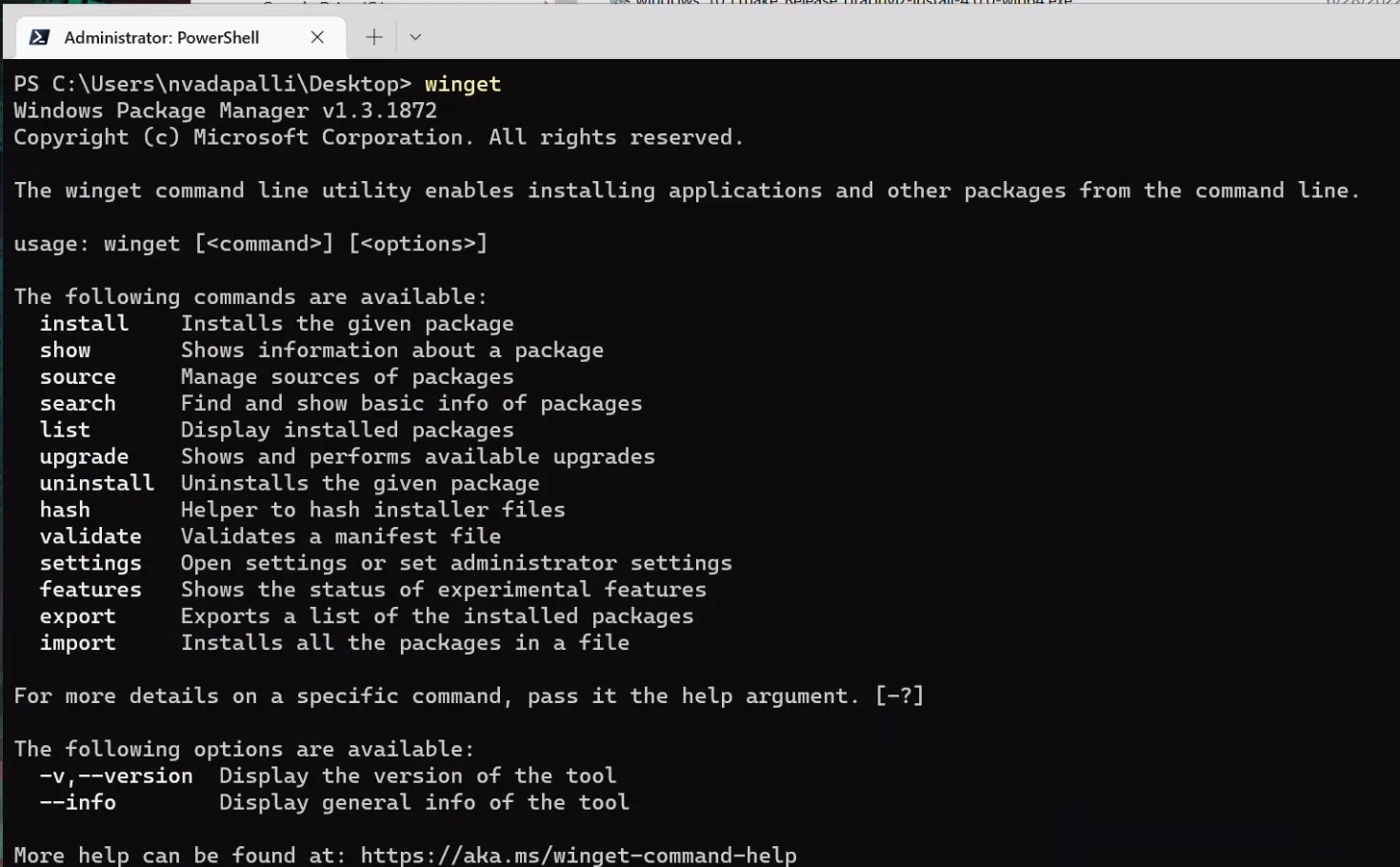
Install winget on the machine
There are multiple ways of installing wingeton a given windows machine. One easier thing would be to look for winget in the Windows Appstore and shows up as App Installer.
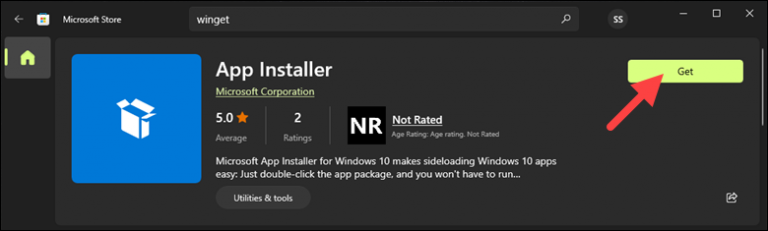
Sometimes this doesn’t go through and a reliable way to install winget would be, via the github releases of official git repository: https://github.com/microsoft/winget-cli/releases
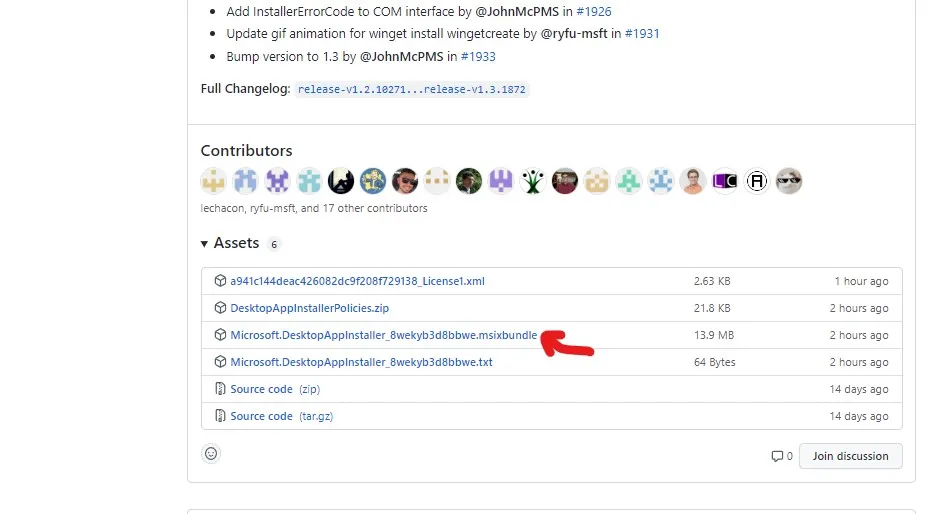
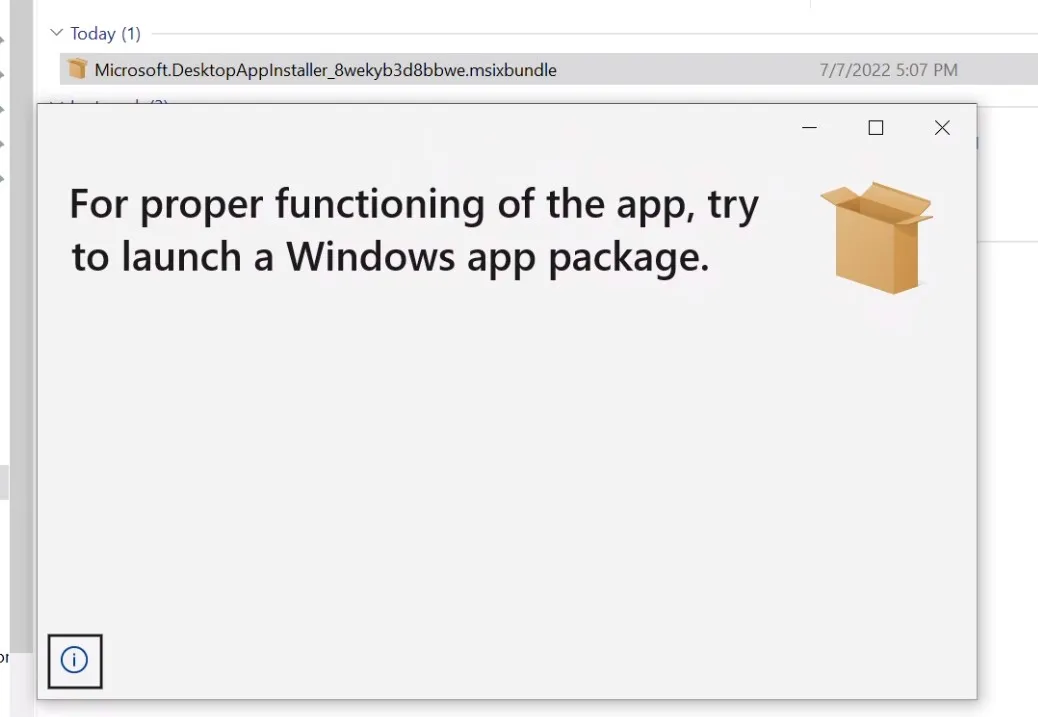
Double click on the .msixbundle file and go through the prompts and Winget will be installed
Install oh-my-posh
Run the following command
winget install JanDeDobbeleer.OhMyPoshExpected output should look similar to the Following
Found Oh My Posh [JanDeDobbeleer.OhMyPosh] Version 8.13.1
This application is licensed to you by its owner.
Microsoft is not responsible for, nor does it grant any licenses to, third-party packages.
Downloading https://github.com/JanDeDobbeleer/oh-my-posh/releases/download/v8.13.1/install-amd64.exe
  ██████████████████████████████  6.55 MB / 6.55 MB
Successfully verified installer hash
Starting package install...
Successfully installed
Add the oh-my-posh command to Powershell profile file
- Use your favorite text editor and open
$PROFILEfile, which gets run before the powershell launches, using VSCode (code) here to launch the profile file
code $PROFILE- Add the following linked
oh-my-posh init pwsh --config "$env:POSH_THEMES_PATH\paradox.omp.json" | Invoke-ExpressionRestart Windows Terminal App
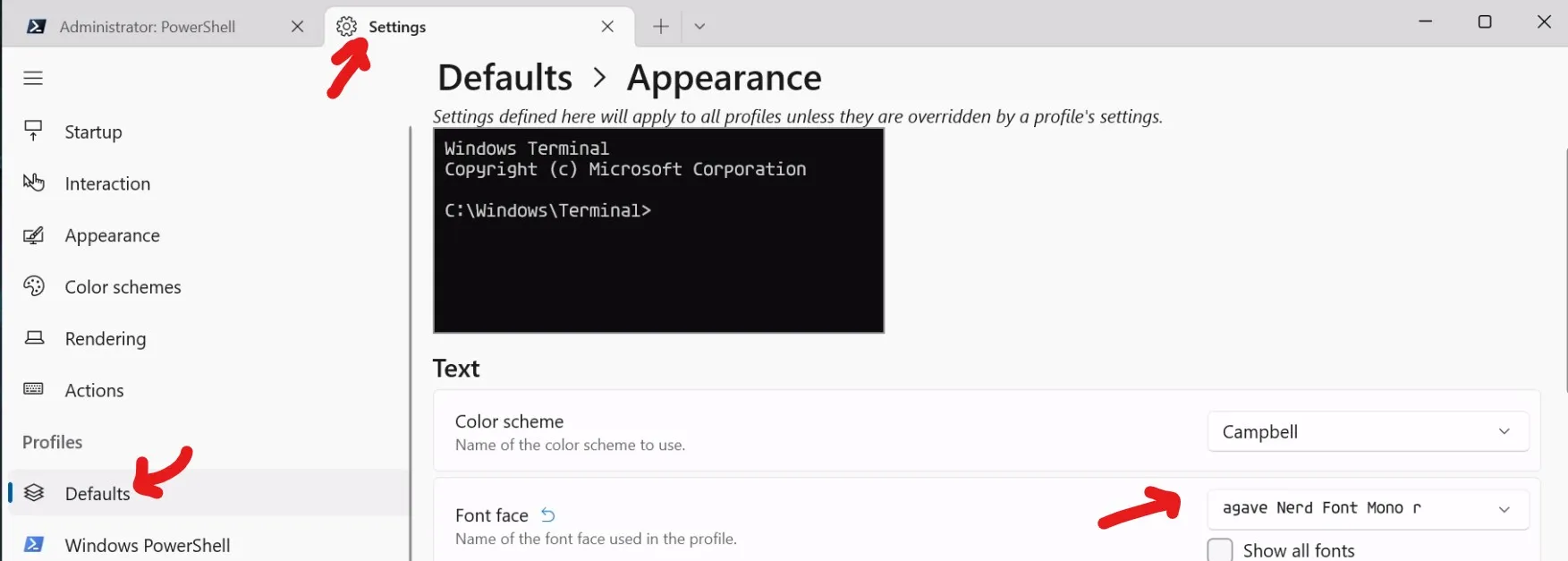
Update the font in the Windows terminal settings app
- Set the font to the downloaded nerd font type face
Result