
Setting up Claude Code: The Ultimate Terminal AI Pair Programmer
A step-by-step setup guide for installing, configuring, and authenticating Anthropic's Claude Code CLI across macOS, Windows, and Linux.
Claude Code Series: ← LLMs, Agents, and Harnesses (Previous) | Claude Code Customization: CLAUDE.md, AGENTS.md, and SKILLS.md (Next) →
Recommended Background Reading
Before diving into this guide, it is recommended to read the previous post in the series:
- LLMs, Agents, and Harnesses: Demystifying Claude Code — A conceptual look at model layers, agent decision loops, and execution harnesses.
Terminal-based AI assistants are rapidly changing how developers build software. By placing an AI directly in your shell, you bypass the friction of copying and pasting code between a web browser and your IDE. In our previous post, we looked at the architectural concepts behind agentic systems. Now, it’s time to get hands-on.
In this guide, we will walk through setting up Claude Code—Anthropic’s agentic CLI tool—on macOS, Windows, and Linux, and cover the essential commands you need to know to get started.
Prerequisites
Before installing Claude Code, ensure you have the following installed on your system:
- Node.js (v18 or later): Needed to run the CLI utility (you can check your version with
node -v). - Git: Essential for codebase tracking, since Claude Code uses Git to inspect changes, checkout branches, and manage state.
- Anthropic Account: You must have a Claude Pro subscription or an active billing setup on the Anthropic Developer Console to pay for API usage.
1. Installation Guide by Operating System
Anthropic provides two main installation paths: a Native Shell Script (recommended, as it manages auto-updates) and NPM. Open your terminal and run the command for your preferred platform:
Option A: Native Script Installation (Recommended)
🍏 macOS & 🐧 Linux
curl -fsSL https://claude.ai/install.sh | sh🪟 Windows (PowerShell)
irm https://claude.ai/install.ps1 | iexOption B: Global NPM Installation
If you prefer managing your command-line tools via Node Package Manager, run the following:
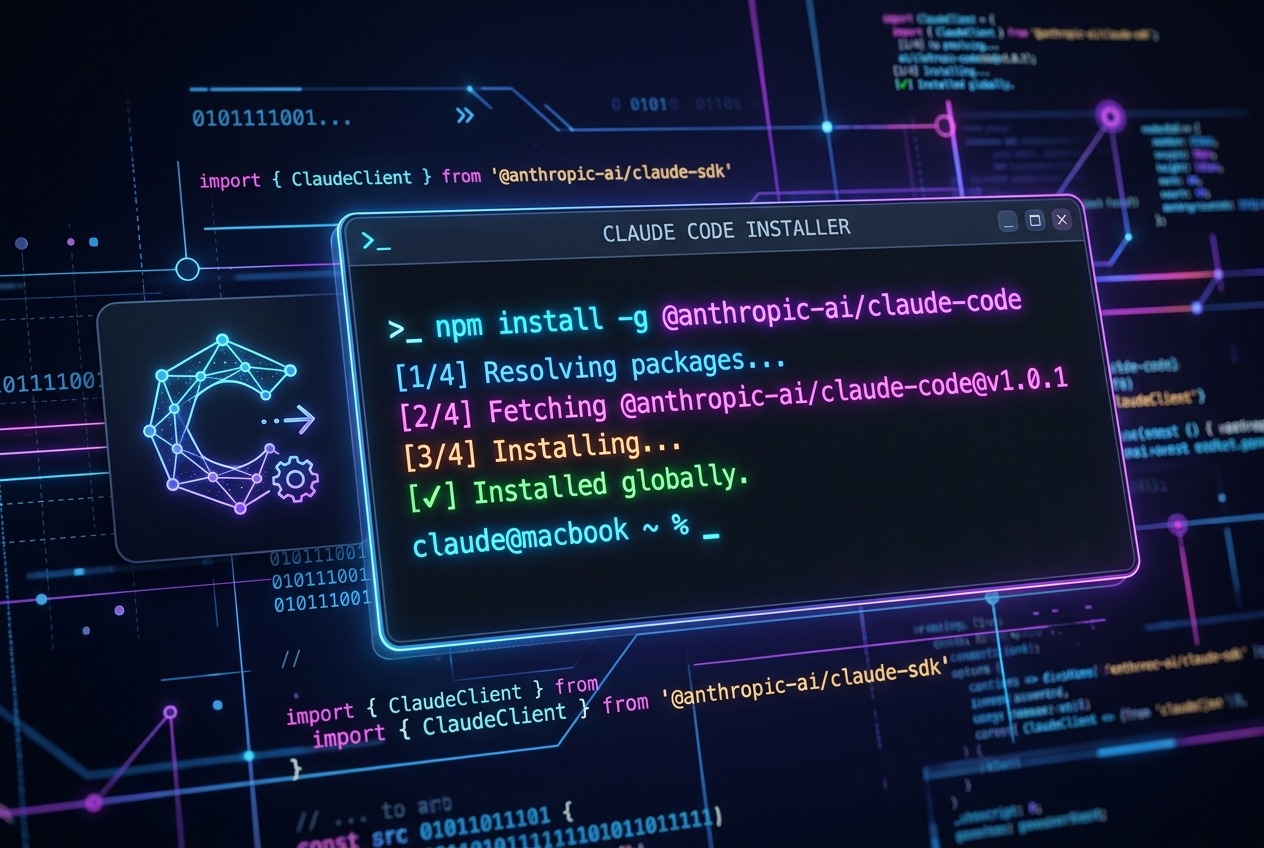
npm install -g @anthropic-ai/claude-code⚠️ Warning: Avoid installing with
sudo(sudo npm install -g ...), as this can lead to write permission conflicts when Claude Code attempts to read your local files or execute diagnostic checks.
2. First-Time Launch & Authentication
Once installed, navigate to any repository or code folder on your machine and launch the tool:
claudeOn your first run, Claude Code will initiate an onboarding flow:
- Terms of Service: You will be prompted to accept Anthropic’s developer preview terms.
- Web Authentication: The CLI will display an authentication link and copy an access code to your clipboard.
- Log In: Press
Enterto open your browser, log in to your Anthropic account, enter the code, and grant permission.
Once authenticated, Claude Code will analyze your local directory structure and drop you into an interactive session (prompted by claude > ), ready for commands.
3. Essential Slash Commands
Just like other command-line agents, Claude Code features a series of built-in slash commands to manage context, undo edits, and configure preferences. Type these directly into the interactive prompt:
| Command | Action |
|---|---|
/help | Lists all available slash commands and descriptions. |
/clear (or /reset) | Clears chat history to start a fresh thread, keeping local directory analysis. |
/plan | Switches Claude into a specialized planning mode for writing outline blueprints. |
/compact | Summarizes the session history to free up space in your model’s context window. |
/context | Shows a visual breakdown of your current token usage and active files. |
/rewind | Reverts file changes, chat history, or both back to a previous turn. |
/doctor | Verifies your setup, tests your connection, and checks for CLI environment issues. |
/mcp | Configures Model Context Protocol (MCP) server endpoints. |
/config | Opens the interactive settings UI to manage themes, models, and toggle features. |
/exit (or /quit) | Exits the current agent session (you can also press Ctrl+D). |
4. Customizing Your Settings
To customize preferences, type /config inside the interactive shell to open the configuration panel. Alternatively, you can modify configuration keys directly using key=value parameters. For example:
- Toggle Thinking Mode:
/config thinking=true(Allows models like Claude 3.7 Sonnet to use internal reasoning steps before responding). - Switch Models:
/config model=claude-3-7-sonnet(Configures the default cognitive engine). - Change Theme:
/config theme=dark(Sets light/dark modes).
5. Claude Code in Action: A Usage Example
Let’s look at how Claude Code manages refactoring and shell commands interactively. Because it is fully agentic, it will ask for your approval before performing write actions or executing terminal tools:
naren@macbook website % claude
claude > I need to fix the responsive styling in contents/portfolio/index.md and run build to verify.

🤖 Analyzing contents/portfolio/index.md...
   Detected CSS alignment issue on mobile layout view.
🤖 Proposing changes to contents/portfolio/index.md...
   [File Edit proposed] Make modification? (Y/n): y
   ✓ Edits successfully applied.

🤖 Proposing terminal command: npm run build
   [Review Required] Run command 'npm run build'? (Y/n): y

   Running build...
   ✓ 42 pages built successfully!

claude > The CSS adjustments have been made, and the site builds successfully. Let me know if you need any other styling tweaks!
Summary
Getting started with Claude Code is straightforward. By installing the CLI, completing browser-based authentication, and mastering slash commands like /compact and /rewind, you gain a powerful pair programmer that acts as a natural extension of your terminal shell.
In the next post of this series, we will explore advanced usage patterns, including configuring custom Model Context Protocol (MCP) servers to connect Claude Code to external tools like databases, Jira, or GitHub!