
Setting up Google Antigravity CLI: The AI-First Terminal Assistant
A comprehensive guide on installing and configuring Google Antigravity CLI (agy) on Mac, Windows, and Linux, complete with TUI commands, settings.json customization, and real-world usage examples.
This is Part 1 of a 4-part series on the Google Antigravity CLI. Keep reading: Part 2 (Custom Skills) | Part 3 (Background Tasks) | Part 4 (Custom Endpoints)
Terminal-based AI coders are completely changing how we write, test, and debug code. Following the wave of tools like Claude Code, Google’s Antigravity CLI (agy) brings an AI-first agentic experience directly to your command line. Powered by Gemini, it can search your codebase, edit files, execute commands (with sandbox safety), manage background tasks, and even pair-program with you interactively.
In this guide, we’ll walk through setting up the Antigravity CLI on macOS, Windows, and Linux, and look at how to customize and use it for daily development workflows.
1. Installation Guide by Operating System
Installing the Antigravity CLI is straightforward across all major operating systems. Open your preferred terminal and run the command for your platform:
🍏 macOS & 🐧 Linux
On Unix-like environments, you can install the CLI using a simple curl script:
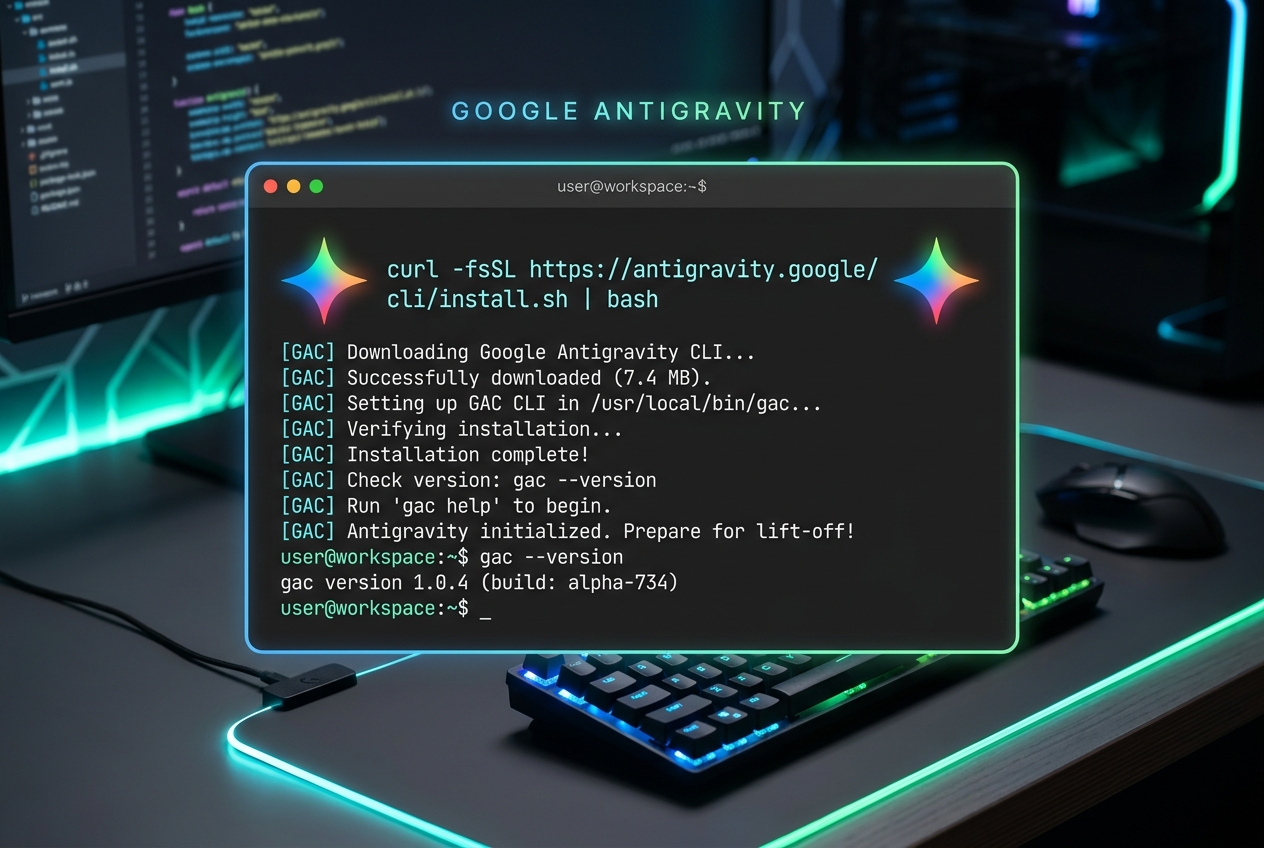
curl -fsSL https://antigravity.google/cli/install.sh | bashNote on PATH: The installer places the
agybinary under~/.local/bin/agy. To ensure you can run it globally, make sure this directory is in your shell’s search path. If it isn’t, add the following to your~/.zshrcor~/.bashrc:export PATH="$HOME/.local/bin:$PATH"
🪟 Windows (PowerShell)
For a modern Windows shell experience, open PowerShell (as Administrator if needed) and run:
irm https://antigravity.google/cli/install.ps1 | iex🪟 Windows (Command Prompt / CMD)
If you are using the traditional CMD terminal, run:
curl -fsSL https://antigravity.google/cli/install.cmd -o install.cmd && install.cmd && del install.cmd2. First-Time Launch & Authentication
Once installed, navigate to any code repository or project directory and initialize the CLI:
agyOn your very first run, Antigravity will kick off a quick onboarding flow:
- Interactive Setup: You will be prompted to choose your preferred color scheme (e.g., terminal, dark, or light) and TUI settings.
- Authentication: The CLI will ask you to press
Enterto open an OAuth link in your web browser. Log in with your Google account, authorize the CLI, and paste the authentication token back into your terminal.
Once logged in, you will be greeted by the Antigravity prompt (AGY> or similar status line), ready for commands.
3. Essential TUI Commands
The Antigravity CLI features a rich set of built-in slash commands and keyboard shortcuts to navigate and control the agent session. Type these directly into the prompt:
| Command | Action |
|---|---|
/help | Displays the help menu, shortcuts, and command lists. |
/clear or /new | Clears the terminal screen and resets the current session buffer. |
/context | Shows what files and symbols are currently active in the agent’s context. |
/skills | Lists all loaded agent skills (such as guides, databases, or test helpers). |
/settings | Opens the interactive terminal configuration panel. |
/diff | Displays a clean git-style diff of all local changes made by the agent. |
/permissions | Manages tool execution permissions (allow/deny lists for safety). |
/exit or /quit | Exits the active session (you can also press Ctrl+D twice). |
4. Customizing Your Setup (settings.json)
You can customize global preferences for the agent by editing its configuration file. On all platforms, this is stored at:
~/.gemini/antigravity-cli/settings.json
Here is a recommended production configuration enabling terminal sandboxing and strict permission reviews:
{
  "model": "gemini-3.5-flash",
  "toolPermission": "request-review",
  "enableTerminalSandbox": true,
  "allowNonWorkspaceAccess": false,
  "colorScheme": "dark",
  "historySize": 2000,
  "notifications": true,
  "verbosity": "high"
}
Key Settings explained:
toolPermission: Set torequest-reviewto always ask before executing write operations.enableTerminalSandbox: Isolates bash commands executed by the agent to prevent accidental filesystem damage.allowNonWorkspaceAccess: Set tofalseto keep the agent strictly focused inside your active project directory.
5. Antigravity CLI in Action: Usage Examples
Let’s look at how the CLI handles real-world programming tasks. Because the agent is fully conversational and agentic, you can talk to it in natural language:
Example A: Writing and Running Tests
You can ask Antigravity to write unit tests for your code, run them using your local test runner, and resolve any failures on the fly:
naren@macbook project % agy
AGY> Look at src/utils.js, write a unit test for the formatting functions, and run npm test to verify.

🤖 Analyzing src/utils.js...
   Found formatCurrency() and formatRelativeTime()
🤖 Creating test file: tests/utils.test.js...
   Staging unit tests using Jest framework.
🤖 Proposing command: npm test
   [Review Required] Run command 'npm test'? (Y/n): y

   Running tests...
   ✓ tests/utils.test.js (45ms)
   Test suite passed!

AGY> I have created the test file and successfully verified that all formatting tests pass!
Example B: Codebase Refactoring & Branch Management
Antigravity can help you refactor code, inspect differences, and interact with git:
AGY> Refactor the company rendering in src/pages/resume.astro to separate locations, show me the diff, and commit the result.

🤖 Reading src/pages/resume.astro...
🤖 Making edits to extract locations into a separate 'location' field...
🤖 Proposing git diff check...
   Showing changes:
   - company: "Skynet Technology Ltd, Surrey, Canada"
   + company: "Skynet Technology Ltd"
   + location: "Surrey, Canada"

🤖 Proposing command: git checkout -b feature/update-resume-locations && git add . && git commit -m "Separate company location into a location attribute"
   [Review Required] Execute git command? (Y/n): y

   Switched to a new branch 'feature/update-resume-locations'
   [feature/update-resume-locations 4a7c88b] Separate company location into a location attribute
   1 file changed, 14 insertions(+), 3 deletions(-)

AGY> The refactoring is complete, and the changes have been safely committed to the branch feature/update-resume-locations.
Conclusion
The Google Antigravity CLI represents a massive leap forward for command-line productivity. By putting a powerful reasoning engine inside your terminal with permission controls and file system visibility, it bridges the gap between typing code and orchestrating tasks.
Give it a try in your next project session and experience the power of terminal-native pair programming!