
Running Local LLMs: Ollama vs. vLLM
A comprehensive guide to running Large Language Models locally on Windows, macOS, and Linux using Ollama and vLLM, including pros, cons, and performance tuning.
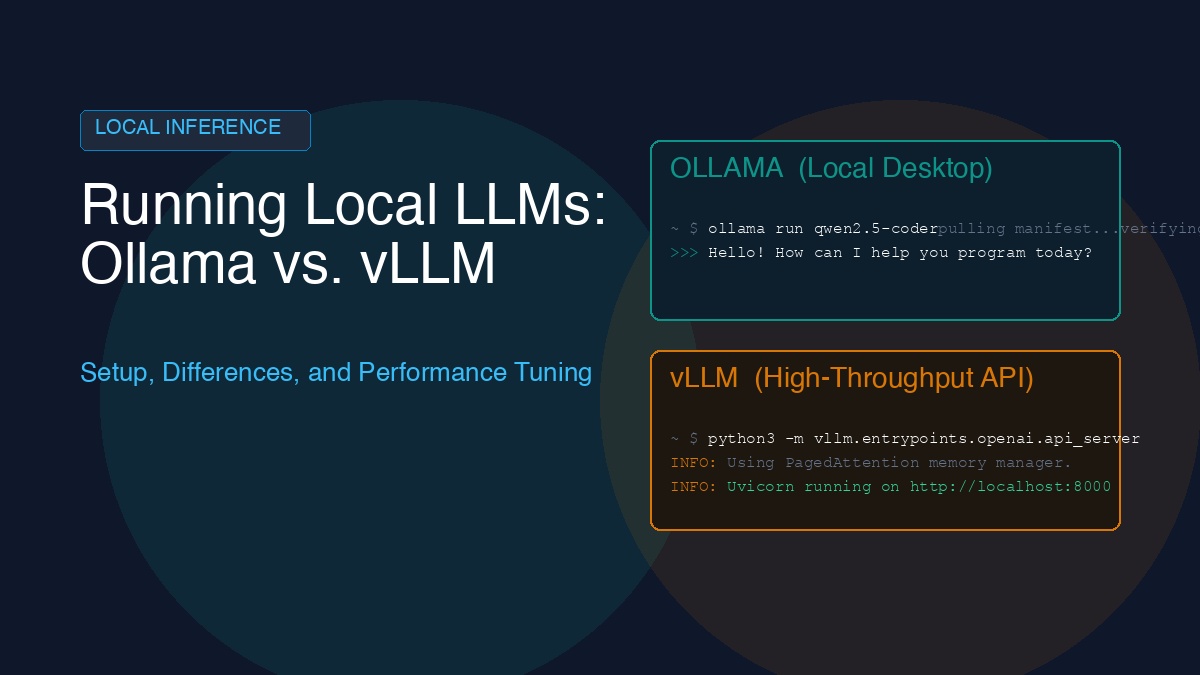
Running Large Language Models (LLMs) locally on your own hardware has transitioned from a niche hobby to an essential workflow for developers and enterprises. The benefits are clear: complete data privacy, zero API costs, offline capability, and the freedom to experiment with specialized or fine-tuned models.
When it comes to local LLM engines, two frameworks stand out as industry standards: Ollama and vLLM. However, they serve very different purposes and architectures.
In this guide, we’ll compare Ollama and vLLM, outline their pros and cons, guide you through step-by-step installations for Windows, macOS, and Linux, and look at hardware optimization and model selection.
Ollama vs. vLLM: The Core Differences
To choose the right framework, it helps to understand their target use cases:
- Ollama is designed for developers and desktop users. It acts as a friendly CLI and desktop application wrapper around
llama.cpp. It simplifies downloading, managing, and running models, and runs efficiently on local consumer hardware (macOS, Windows, and Linux CPU/GPUs). - vLLM is designed for high-throughput production serving. It is a Python-based library optimized for server-grade GPUs (though it supports consumer GPUs too). Its signature feature is PagedAttention, which manages memory and keys/values caches dynamically, enabling massive throughput and concurrent requests.
| Feature | Ollama | vLLM |
|---|---|---|
| Primary Focus | Simplicity, local dev environment | High throughput, production APIs |
| Underlying Engine | llama.cpp (C/C++) | Custom Python engine / PagedAttention |
| Target Hardware | Apple Silicon, Consumer GPUs, CPUs | NVIDIA GPUs, AMD GPUs |
| API Format | Custom endpoints & OpenAI-compatible | OpenAI-compatible server |
| Concurrently Served Requests | Low (queue-based or simple parallel) | High (dynamic batching) |
| Supported File Formats | GGUF (quantized) | Unquantized, AWQ, GPTQ, FP8/FP16 |
Pros and Cons
Ollama
- Pros:
- Dead Simple: Single-command downloads and startup.
- Multi-Platform: Native installers for macOS, Windows, and Linux.
- Low Memory Footprint: Uses GGUF formats, allowing large models to run on modest VRAM or system RAM (via CPU offloading).
- Agent Integration: Native bindings for tools like LangChain, LlamaIndex, and terminal assistants.
- Cons:
- Not Built for Concurrent Scale: Lacks advanced dynamic batching; struggles under high parallel loads.
- Less Flexible for Custom Models: Importing non-GGUF custom models requires writing a
Modelfileand manual compilation.
vLLM
- Pros:
- Incredible Speed: Up to 10x-20x higher throughput than standard engines under concurrent request loads.
- PagedAttention: Efficient memory management prevents out-of-memory (OOM) errors during long generation sequences.
- Distributed Serving: Native support for Tensor Parallelism (splitting models across multiple GPUs).
- OpenAI Compatibility: Seamless drop-in replacement for OpenAI API clients.
- Cons:
- Complex Setup: Requires Python environments, CUDA configurations, and pip dependencies.
- Hardware Demanding: Requires a dedicated GPU with decent VRAM; CPU execution is highly limited.
- No CPU Offloading: Unlike
llama.cpp, it cannot split layers between VRAM and system RAM.
Step-by-Step Installation Guides
Choose the framework that fits your workflow. Here are the copy-pasteable setup instructions:
1. Ollama Installation
macOS
Download the native zip archive, unzip, and drag it to your Applications folder:
Or install via Homebrew:
brew install ollamaWindows
Download and run the official Windows Installer:
Linux
Run the official one-liner script:
curl -fsSL https://ollama.com/install.sh | shRunning a Model in Ollama
Once installed, open your terminal/command prompt and run:
# Run a coding model
ollama run qwen2.5-coder

# Or run a general assistant model
ollama run llama3.1
Ollama will download the model weights automatically and drop you into an interactive chat interface. You can access the API locally at http://localhost:11434.
2. vLLM Installation (Python & GPU required)
vLLM requires a Linux or Windows (via WSL2) environment with Python 3.9–3.12 and an NVIDIA GPU (compute capability 7.0+).
Step 1: Set up a virtual environment (Linux / WSL2)
# Update package list and install virtualenv
sudo apt update && sudo apt install -y python3-venv python3-pip

# Create and activate environment
python3 -m venv vllm-env
source vllm-env/activate
Step 2: Install PyTorch and vLLM
Make sure you have CUDA installed (version 12.1 is recommended):
# Install vLLM via pip
pip install --upgrade pip
pip install vllm
Step 3: Run the vLLM OpenAI-Compatible Server
Start the server hosting a popular open-weight model:
python3 -m vllm.entrypoints.openai.api_server \
    --model Qwen/Qwen2.5-Coder-7B-Instruct \
    --port 8000
This serves the model at http://localhost:8000/v1 with OpenAI-compatible endpoints (/v1/chat/completions).
Performance Optimization on Local Hardware
To squeeze the best performance out of your workstation:
1. Leverage Quantization
Running raw FP16 models takes massive VRAM. Use compressed weights:
- Ollama (GGUF): Ollama runs quantized models by default. Use
4-bit(Q4_K_M) for the best balance of speed and accuracy. - vLLM (AWQ/GPTQ): Install and host AWQ/GPTQ models in vLLM to cut memory requirements in half:
python3 -m vllm.entrypoints.openai.api_server \
    --model Qwen/Qwen2.5-Coder-7B-Instruct-AWQ \
    --quantization awq \
    --port 8000
2. Configure GPU Memory Settings (vLLM)
By default, vLLM reserves 90% of your GPU memory for cache allocations. If you run into OOM errors or want to run other apps alongside vLLM, adjust the utilization:
# Restrict vLLM to use only 75% of VRAM
--gpu-memory-utilization 0.75
3. Restrict Context Length
Reduce memory allocations by setting a hard limit on context length:
# Limit the context window to 4096 tokens
--max-model-len 4096
Recommended Local Model Choices
Select your model based on your system hardware capacity:
For Coding & Development
- Qwen 2.5 Coder (7B or 14B): Currently the state-of-the-art open-weight coding model. Outstanding at multi-file logic and debugging.
- DeepSeek Coder (6.7B): Extremely lightweight, highly performant code generator.
- Kimi K2.7-Code: Moonshot AI’s massive open-weight coding model. Offers outstanding coding capabilities, but requires hundreds of gigabytes of RAM/VRAM due to its parameter size, typically serving on specialized high-end workstations using vLLM or KTransformers.
For General Chat & Reasoning
- Llama 3.1 (8B): Anthropic-grade general reasoning and instruction-following. Perfect for daily workspace agents.
- Gemma 2 (9B): Google’s open-weight model, delivering high performance on reasoning benchmarks.
- GLM-4 (9B) & GLM-4.7: Highly capable multi-lingual open-weight models from Zhipu AI, optimized for agentic reasoning and tool-calling.
For Ultra-Lightweight Systems (Laptops / No Dedicated GPU)
- Llama 3.2 (3B) / Qwen 2.5 (1.5B): Small models that run incredibly fast on standard laptop CPUs. Perfect for simple lint checks and summaries.
Running GLM Models Locally
Can you run GLM models on Ollama and vLLM? Yes, both engines fully support the GLM family.
- For Ollama: You can pull and run pre-compiled GGUF models directly:
ollama run glm4 - For vLLM: You can host the model natively using the standard API server command:
vllm serve THUDM/glm-4-9b-chat
Summary
If you need a simple tool to act as a coding partner on your laptop or local workspace, Ollama is the ideal framework. If you are building a custom developer backend, serving multiple teammates, or running automated batch evaluation pipelines, vLLM provides the performance and scale you need.