
Claude Code Customization: CLAUDE.md, AGENTS.md, and SKILLS.md
Master project-level customization for Anthropic's Claude Code by writing rules and guidelines in CLAUDE.md, AGENTS.md, and custom SKILLS.md.
Claude Code Series: ← Setting up Claude Code (Previous) | Claude Code Basics: Commands, Subagents, and Memory Layers (Next) →
Recommended Background Reading
Before diving into this guide, it is recommended to read the previous posts in the series:
- LLMs, Agents, and Harnesses: Demystifying Claude Code — A conceptual introduction to terminal agent architecture.
- Setting up Claude Code: The Ultimate Terminal AI Pair Programmer — A step-by-step installation, authentication, and CLI usage guide.
Once you have installed and configured Claude Code, the CLI is ready to execute shell commands, fix errors, and refactor files. However, by default, the agent is operating on generic assumptions. It doesn’t know your codebase’s architecture, your team’s style guide, or what specific build and test commands to run.
To bridge this gap, modern agentic frameworks look for special configuration files in the root of your project or globally in your user configuration folder.
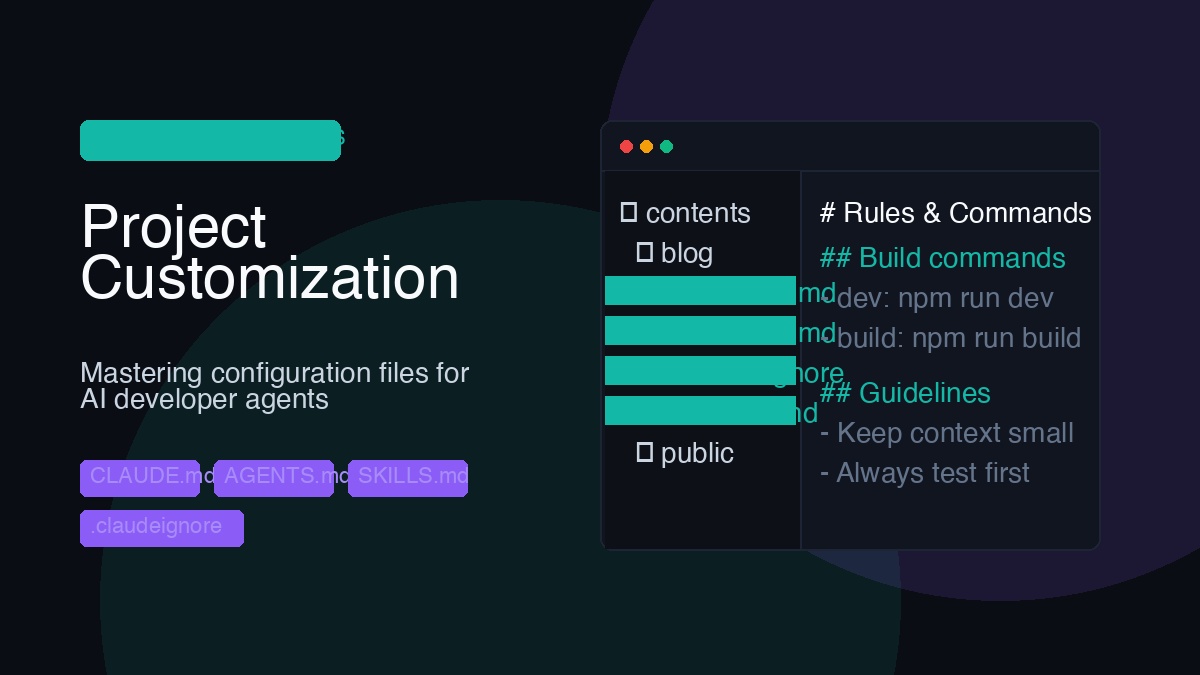
In this article, we’ll look at the roles, structures, and practical examples of three crucial custom files: CLAUDE.md, AGENTS.md, and SKILLS.md.
1. CLAUDE.md: Project-Level Rules & Commands
If there’s only one file you add to customize your agent, make it CLAUDE.md. Positioned at the root of your repository, CLAUDE.md serves as a quick-reference guide that the model parses at the start of every session. It teaches the agent how your codebase is structured and how to perform basic engineering tasks.
Core Sections to Include:
- Build/Run/Test Commands: Explicitly list copy-paste-ready shell commands.
- Tech Stack Details: Briefly outline the primary frameworks and databases.
- Code Style & Patterns: Detail guidelines (e.g. naming conventions, folder structures, linting preferences).
Real-world Example:
Here is a sample CLAUDE.md for a modern Astro-based web application:
# Astro Personal Website Guidelines

## Development Commands
- Start dev server: `npm run dev`
- Build production bundle: `npm run build`
- Run linting: `npm run lint`

## Architecture & Technology Stack
- **Framework:** Astro v6 (Static Site Generation)
- **UI Components:** React for interactive elements
- **Styling:** Vanilla CSS variables (defined in `src/styles/global.css`)

## Coding Conventions & Guidelines
- Stage and commit changes using concise conventional commits (e.g. `feat: ...`, `fix: ...`).
- Keep lines in Markdown posts wrapped to a maximum of 80 characters.
- Use native HTML elements where possible rather than importing heavy React components.
- Always run `npm run build` locally to verify there are no compilation errors before claiming a task is done.
By providing these commands, you prevent the agent from guessing commands (e.g., trying to run yarn test when you use vitest or jest), which saves API tokens and time.
2. .claudeignore: Controlling Agent Context Filter
Just like .gitignore tells Git which files to exclude from source control, .claudeignore tells Claude Code which files and folders to completely ignore during project analysis.
By default, Claude Code respects .gitignore. However, .claudeignore is valuable for hiding large, dynamic, or non-code files that are tracked by Git but should not be read or cached by the AI model. This saves significant token usage and avoids cluttering Claude’s active context window.
What to include in .claudeignore:
- Massive Lockfiles: Files like
package-lock.jsonorpnpm-lock.yamlwhich contain thousands of lines of noise. - Build & Cache Folders:
.astro/,dist/,.next/, or local cache directories. - Media Assets: Image, video, and audio assets that cannot be read as text.
- Large Test Data / Mock payloads: Large JSON test fixtures that confuse the AI search indexing.
Real-world Example:
Create a .claudeignore file in the root of your project:
# Exclude heavy package lock files to save tokens
package-lock.json
yarn.lock
pnpm-lock.yaml

# Exclude generated build assets and cache files
dist/
build/
.astro/
.cache/

# Exclude heavy media folders
public/images/
public/videos/

# Exclude large mock data files
tests/fixtures/*.json
3. AGENTS.md: Defining Agent Behavior & Guardrails
While CLAUDE.md is specific to the project, AGENTS.md is used to define the behavioral guidelines and safety guardrails governing the agent itself. It acts as an instruction manual for the AI persona.
You can place AGENTS.md in:
- Project Root: For project-scoped team rules (e.g., “Do not use deprecated APIs”).
- Global User Folder (e.g.,
~/.gemini/configor.agents/): For global rules you want enforced across every repository you work on.
Real-world Example:
Here is a sample AGENTS.md specifying git hygiene and file integrity guardrails:
# Agent Guardrails & Behavioral Guidelines

- **Git & Push Operations**:
  - Never push commits directly to the remote repository without explicit user authorization.
  - Ask the user which branch to push to or if a Pull Request should be created.
- **Documentation Integrity**:
  - Preserve all existing inline comments, JSDoc/Docstrings, and header notices that are unrelated to your changes. Do not delete them to save vertical space.
- **Security Protocols**:
  - Never commit files containing API keys, private keys, or passwords.
  - Check `.gitignore` before writing any credentials.
- **Tone & Answers**:
  - Keep explanations concise. Summarize your edits at the end of the turn using markdown diff blocks.
4. SKILLS.md & Custom Agent Skills
In advanced agentic setups (like Google Antigravity or custom CLI configurations), Skills are specialized instructions or scripts that extend the agent’s capabilities beyond simple text edits.
Instead of writing a massive prompt explaining how to do a complex, multi-step job, you can package the workflow as a custom skill:
- Create a folder
skills/my_skill/in your customization root. - Add a
SKILL.mdfile containing metadata frontmatter and step-by-step instructions. - Add helper scripts (e.g., Python, Bash, Node.js) in a
scripts/folder inside the skill directory.
Structure of SKILL.md:
- YAML Frontmatter: Must contain a
nameand adescription. The agent uses this metadata to trigger-match your request. If your request matches the description, the skill’s instructions are loaded. - Markdown Body: Detailed instructions and references.
Real-world Example:
Suppose you frequently need to generate circular cropped icons from square images. You can define a skill in skills/circular_icon/SKILL.md:
---
name: circular-icon-converter
description: "Converts a square image to a circular cropped PNG asset for profile or work logos."
---

# Instructions for Circular Icon Conversion
1. Locate the source image file in the repository.
2. Ensure you have the Python helper script at `scripts/make_circular.py`.
3. Run the script using the CLI:
   ```bash
python scripts/make_circular.py --input <path_to_source> --output <path_to_public_images>- Confirm the output file was successfully generated and is under 100KB.
This modular approach ensures that heavy instructions are only loaded when *actually needed*, keeping the conversational context light and efficient.

---

### Summary: Customization Hierarchy

When customizing terminal AI pairs, keep this hierarchy in mind:

| Config File | Scope | Primary Target |
| :--- | :--- | :--- |
| **`AGENTS.md` (Global)** | System-wide | General security, coding rules, git workflow. |
| **`CLAUDE.md`** | Repository-wide | Build instructions, tech stack definition, style guides. |
| **`.claudeignore`** | Repository-wide | Performance and context filtering (excludes lockfiles, binaries, cache folders). |
| **`SKILLS.md`** | Dynamic / On-Demand | Trigger-matched instructions, scripts, and API automation. |

By tailoring these files, you transform your terminal AI pair programmer from a general assistant into a context-aware specialist that follows your team's exact engineering standards.

In the next post, we will explore [Claude Code Basics: Commands, Subagents, and Memory Layers](/blog/claude-code-commands-agents-memory/)!