
Going Async: Background Tasks, Timers, and Scheduling in Antigravity CLI
A deep dive into managing long-running tasks, using asynchronous tools, setting timers, and configuring recurring jobs with the Google Antigravity CLI.
This is Part 3 of a 4-part series on the Google Antigravity CLI. Read: Part 1 (Setup) | Part 2 (Custom Skills) | Part 4 (Custom Endpoints)
Recommended Background Reading
Before diving into this guide, it is recommended to read the previous posts in this series:
- Setting up Google Antigravity CLI: The AI-First Terminal Assistant — Installation and core command overview.
- Extending Antigravity CLI: Building Custom Skills and Project Rules — How to customize agent behavior and package reusable scripts.
When paired with a terminal AI agent, not all tasks are quick one-liners. If you ask an agent to run a full test suite, bundle a production build, or perform a complete security scan of your codebase, you don’t want your shell to lock up while waiting for the command to finish.
The Google Antigravity CLI (agy) has built-in support for asynchronous background tasks, custom timers, and recurring scheduler events.
In this guide, we will explore how to manage background tasks, check their logs, and configure scheduled actions for your repository workflows.
1. Working with Background Tasks (manage_task)
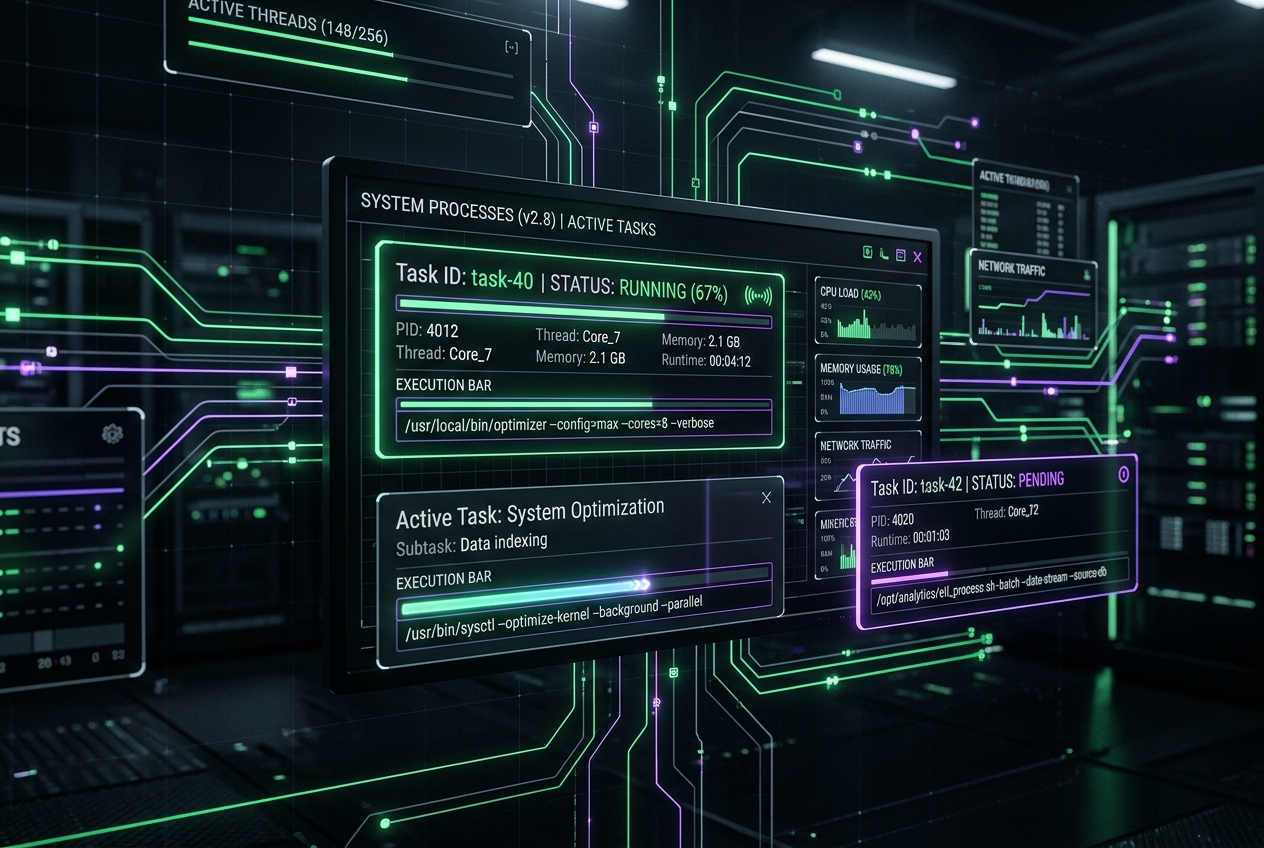
When you ask the Antigravity CLI to run a command that is expected to take a while, it doesn’t block the prompt. Instead, it starts the command as a background task.
Launching a Task
For instance, starting your local development server or compiling a huge Go binary:
AGY> Start the local development server in the background.

🤖 Proposing command: npm run dev
   [Review Required] Run command 'npm run dev'? (Y/n): y

   Task started in background as task-50.
   You can continue your session. I will notify you when the task output updates or completes.
Monitoring and Interacting with Tasks
To manage background processes without leaving your active session, Antigravity provides the /tasks (or /task) slash command. This acts as a wrapper around the client’s task management interface:
- List all active tasks:
/tasks list - Check a task’s status and logs:
/tasks status task-50 - Kill a stuck task:
/tasks kill task-50 - Send user input (stdin) to a task:
/tasks input task-50 "y"
Behind the scenes, logs are streamed directly to your local config cache (~/.gemini/antigravity-cli/tasks/<id>.log), meaning you can tail them or inspect them manually at any point.
2. Setting Up Timers and Reminders
Sometimes you need to kick off a task but want to pause or be reminded to check on it later. Rather than typing a raw shell sleep command (which blocks the CLI’s internal execution state), you can schedule one-shot timers directly.
The /schedule Command
To set a one-shot reminder, tell the agent what you want and when:
AGY> Schedule a reminder in 10 minutes to run npm test on the main branch.

🤖 Timer set for 600 seconds.
   Trigger: "Run npm test on the main branch"
You can control how the timer responds to other messages using conditional arguments. For example:
- Any Cancel: Cancel the timer early if any message is received from the user or another subagent.
- Task Specific: Cancel the timer early if a specific background task (like
task-50) completes before the duration is up.
3. Automating Recurring Actions (Cron Jobs)
For daily workflow maintenance, you can configure recurring cron jobs inside the CLI environment. These run as persistent background tasks as long as your terminal session is active.
To set up a cron job, you specify a standard 5-field cron expression:
AGY> Schedule a cron job to check git status and pull updates every 30 minutes.

🤖 Scheduled recurring job: "Check git status and pull updates"
   Cron expression: "*/30 * * * *"
Example Use Cases
0 9 * * 1-5: Check dependency vulnerability updates every weekday at 9:00 AM.*/15 * * * *: Verify that local Docker container instances are still healthy.0 * * * *: Run a build check and report errors only if the build fails.
You can also specify a MaxIterations limit to auto-terminate a cron job (for example, polling a server health endpoint every minute, but stopping after 5 attempts).
4. Code Example: Writing a Custom Check Scheduler
If you want these schedules to persist and load automatically whenever you boot up your workspace, you can combine these scheduling patterns with the Rules and Custom Skills we set up in our last blog.
Create a rule in .agents/AGENTS.md:
## Automated Diagnostics
* Upon workspace initialization, always schedule a one-shot task to check for outdated npm packages after 5 minutes of idle time.
And in your custom skill .agents/skills/diagnostic_scheduler/SKILL.md:
---
name: diagnostic-scheduler
description: Schedules diagnostic tasks and processes reports in the background.
---

When the workspace is initialized, execute the schedule helper:
1. Schedule a cron check `*/60 * * * *` to run a syntax and lint check.
2. Store reports under `.diagnostics/logs/`.
Wrap Up & Next Steps
Unlocking asynchronous multitasking allows you to use your AI terminal assistant like a developer platform. You can trigger long-running commands, check status, set timers, and let scheduled events keep your codebase clean without losing your active prompt.
Tomorrow, we will explore Custom Model Endpoints—how to configure the Antigravity CLI to talk to local models (like Ollama or vLLM) and enterprise fine-tunes rather than default public API endpoints. Stay tuned!